


Course registration is an essential part of your academic journey at the University of Cape Coast (UCC). If you register your courses on the UCC Student Portal, you have officially enrolled in classes/lectures for the semester.
If you’ve been wondering how to register your courses, this article will guide you through the steps to complete your course registration on the UCC Student Portal.
Why Course Registration Matters
Registering your courses ensures that you are eligible to attend classes, take exams, and receive credit for your academic efforts. It’s a vital step in staying on track for your graduation.
Steps to Register your Courses on the UCC Student Portal
Here’s a simple guide to help you complete the process:
Step 1: Fulfill Key Requirements
Before you begin the registration process, make sure you:
- Pay your fees in full: Only students who have cleared their fees can register for courses.
- Obtain information from your department: Confirm the list of courses offered for the semester from your academic department.
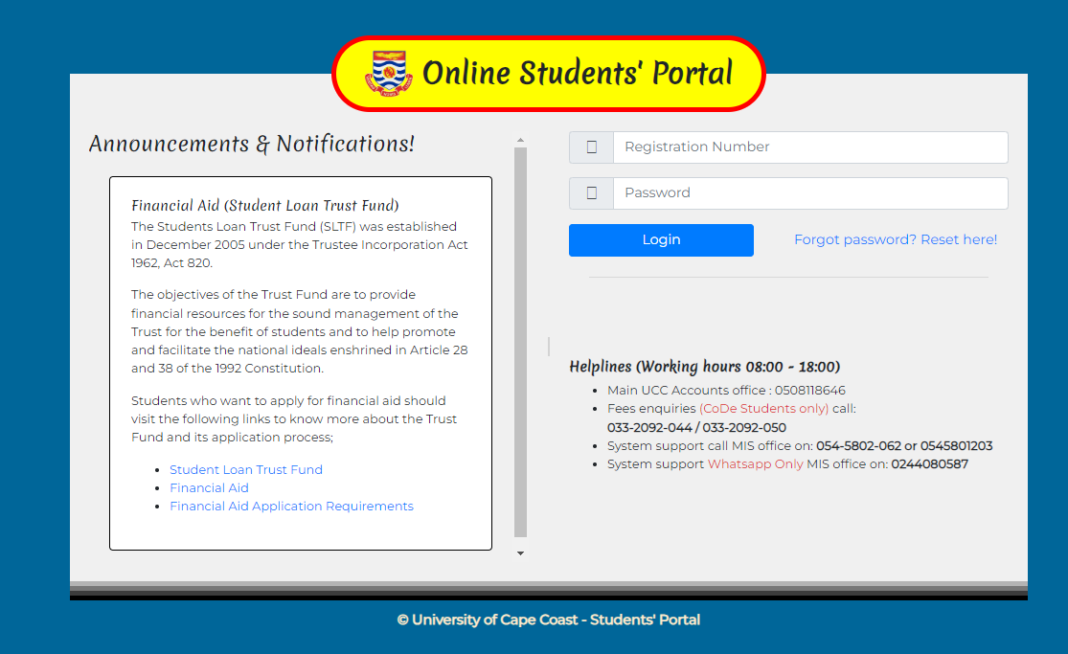
Step 2: Log in to the UCC Student Portal
- Visit the UCC Student Portal: https://portal.ucc.edu.gh/reset/login.php.
- Enter your student registration number and password to access your account.
READ ALSO: How to Reset your UCC Student Portal Password
Step 3: Navigate to the Course Registration Section
- Once logged in, locate the “Course Registration” option on the dashboard or menu.
- Click on it to view the available courses for your program and semester.
Step 4: Select Your Courses
- Carefully review the list of courses provided for your level and program by your department. If there are any changes, report to your department for verification or correction before proceeding to register.
- Select the core (compulsory) courses first.
- If applicable, choose your elective (optional) courses based on your academic plan or preference.
Step 5: Confirm Your Course Selection
- Review the courses you have selected to ensure they are accurate.
- Click the “Save” or “Submit” button to finalize your course registration.
Step 6: Print Your Course Registration Form
- After successful registration, download and print a copy of your course registration form.
- Keep the printed form as evidence and for future reference.
Additional Portal Functions for Fresh Students
Fresh students can also use their portal accounts to:
- Book accommodation and select rooms
- Update personal details
- View examination timetables
- Evaluate lecturers
READ ALSO: How to Assess Your Lecturer on the UCC Student Portal
Need Help?
If you experience challenges accessing the student portal or registering for courses, you can contact the Directorate of Academic Affairs at:
- Email: daa@ucc.edu.gh
- Phone: 0244774488 or 0332132480 (ext 248, ext 229)
READ ALSO: How to Contact UCC Admission Office
Source: knustnoticeboard.info