


- Advertisement -
For Kwame Nkrumah University of Science and Technology (KNUST) staff, accessing and managing university email is essential for communication and coordination.
Here’s a quick guide to logging into your staff email account and sending messages with ease.
- Advertisement -
Logging into KNUST Staff Email
- Open a Mobile Browser: On your mobile device, open your preferred web browser.
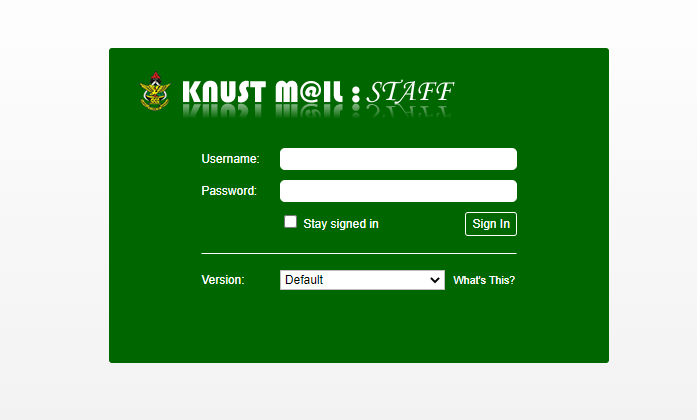
- Navigate to the KNUST Email Login Page: Go to https://mail.knust.edu.gh/.
- Enter Your Login Credentials:
- Email: Type in your KNUST staff email address (e.g.,
username@knust.edu.gh). - Password: Enter your KNUST email password in the designated field.
- Email: Type in your KNUST staff email address (e.g.,
- Click “Sign In”: Once you’ve entered your credentials, click the “Sign In” button to access your account.
- Access Your Dashboard: After signing in, you’ll be directed to your KNUST staff email dashboard where you can view and manage your emails.
How to Send a Message Using KNUST Staff Email
- Click “New Message”: On your dashboard, locate and click the “New Message” button in the upper left corner.
- Enter Recipient and Subject:
- Recipient: Type the recipient’s email address in the “To” field.
- Subject: Enter a subject line for your message to give the recipient context.
- Compose Your Message: Write your message in the main text area.
- Send Your Message: When your message is complete, click the “Send” button to deliver it.
Tips for Effective Email Management
- Check Your Email Regularly: Ensure you stay updated with important information from the university and colleagues.
- Organize Your Inbox: Create folders or labels for efficient email management.
- Maintain Email Security: Always log out after use, especially on shared devices, and change your password regularly to keep your account secure.
Logging into your staff email and sending messages is straightforward. By following these steps, you’ll be able to stay connected and communicate effectively within the university network.
Source: knustnoticeboard.info
- Advertisement -